Getting started with Pro Studio
Pro Studio is where you make fake chat screenshots and videos that take more than one picture: several scenes, a group seen from each member’s phone, a chat that plays as a video. This guide walks through the whole of it once, from an empty project to your first export.
By Jam Hsiao ·
Open Studio
Press Studio at the top of any page here, or go straight to addspeechbubble.com/studio. It opens with a short sample chat in iMessage so there is something to change. Everything you do is saved in your browser as you go; with Pro, your projects are kept in your account too and open on any device.
Already making a chat on one of the free pages, like the fake text message or WhatsApp generator? Its Studio button takes that chat with it, so you carry on where you were.
Find your way around
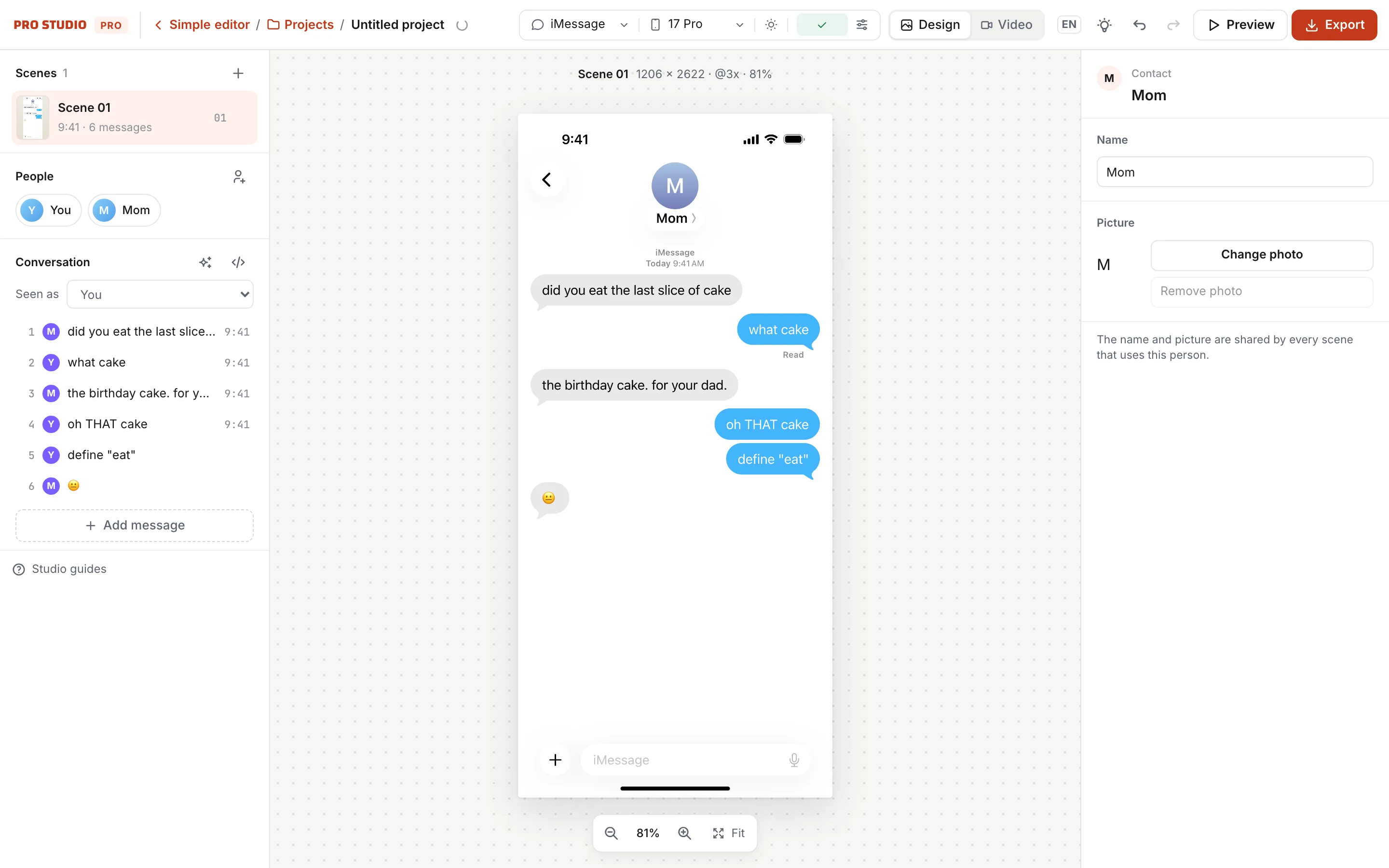
- Left — the project’s Scenes (a scene is one chat on one phone), the People in it, and the Conversation: every message, in order.
- Middle — the phone, exactly as it will export. Click a bubble to pick it; click it again to type in it.
- Right — the settings of what you picked: a message’s words, sender, time, receipt and reactions; a person’s name and picture; the status bar’s time and battery.
- Top bar — the app, phone and theme, Scene settings, Design and Video, Undo, Preview and Export.
Write the chat
- 1Click a message, in the Conversation list or on the phone.
- 2Change its words in Text on the right. Use Sender to move it to the other side of the chat.
- 3Press Insert below to add a message after it, or Add message at the end of the list.
- 4Rename someone by clicking them under People, and give them a picture there too.
To write a whole chat at once, press the Edit as a script button (the </> beside Conversation) and type it one line a message, Name: message, with Me: for you. Apply, and Studio builds the chat, new people and all.
Seen as, above the messages, decides whose phone this is: pick another person and every bubble swaps sides.
Choose the app, phone and theme
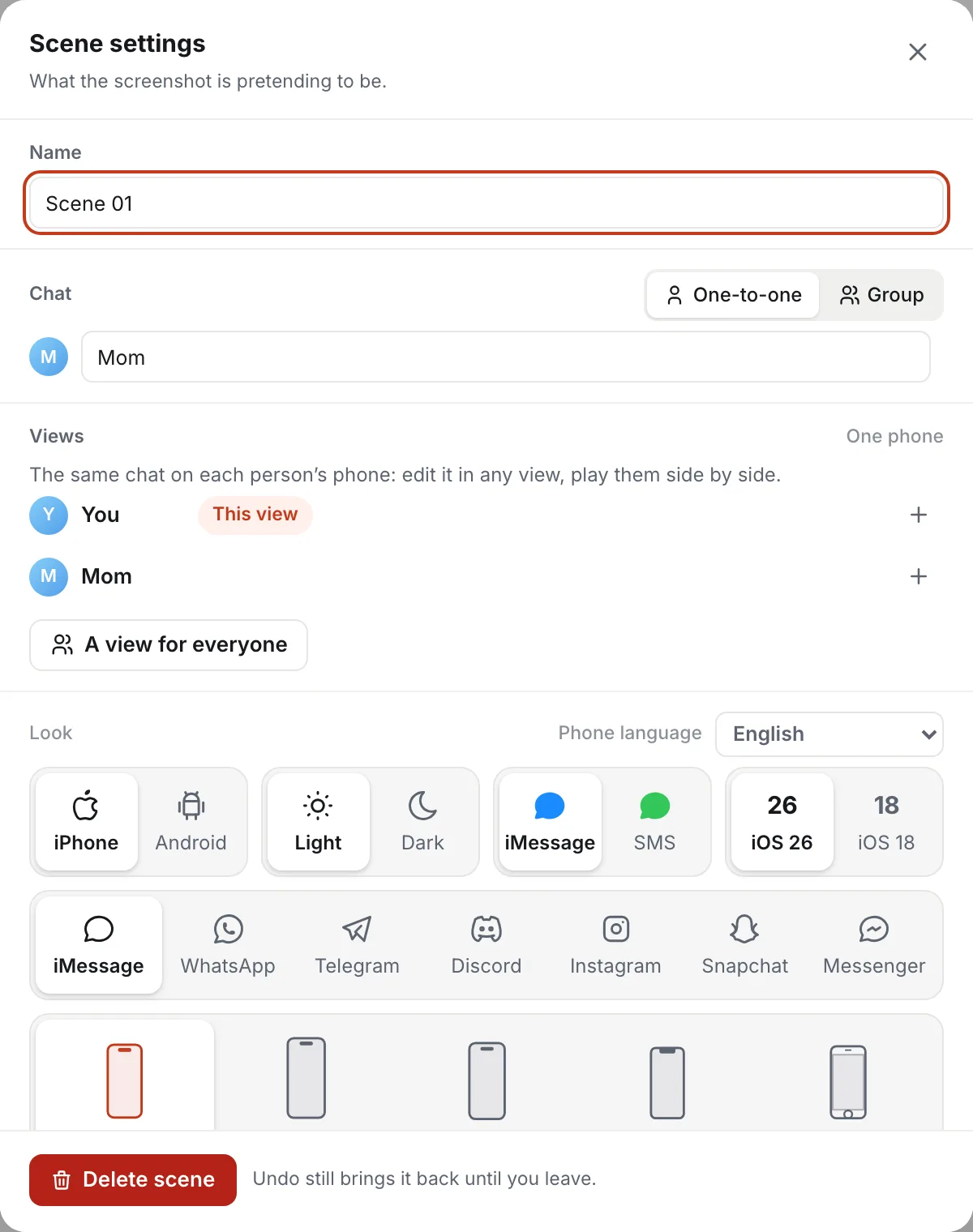
The app, phone and light or dark are in the top bar. For everything else about the scene, press Scene settings (the sliders button beside them).
- 1Pick iPhone or Android, then the app: iMessage, WhatsApp, Telegram, Discord, Instagram, Snapchat or Messenger (Google Messages on Android).
- 2Choose Light or Dark, and for iMessage blue bubbles or green SMS ones and iOS 26 or 18.
- 3Pick the phone model, or a Landscape, Square or Portrait screen — or any width and height — under Surface.
- 4Set the Phone language if the app should speak another language: its own words and its keyboard change with it.
Export a screenshot
- 1Press Export at the top right.
- 2Choose PNG, JPG or WebP and a size: 1× is free; 2× and 4× are Pro.
- 3Export This scene, or All scenes at once as a ZIP (Pro). When a chat runs past one screen, Whole chat exports every screen of it, in order (Pro).
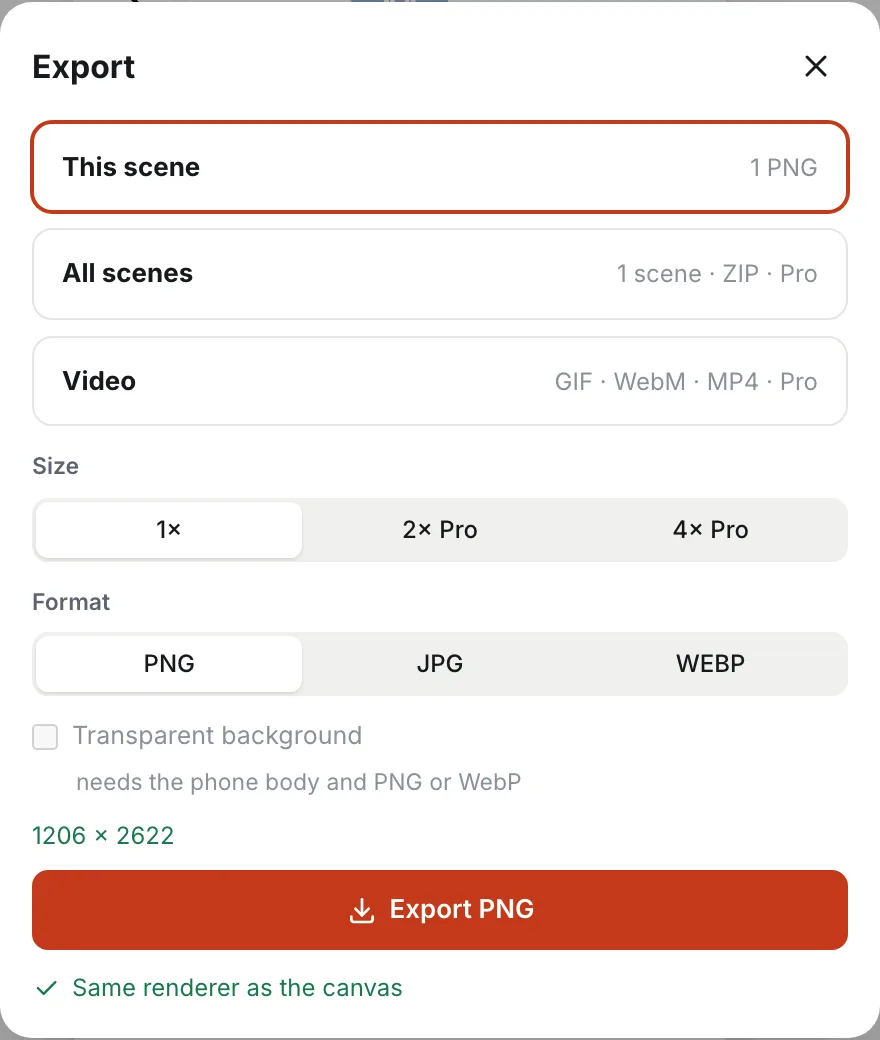
Nothing you export carries a watermark. To make the chat play as a video instead, read how to make a fake text message video.
Try it in Studio
Studio opens in your browser with a sample chat to change. No sign-up to start, and nothing you make carries a watermark.
Open StudioMore Studio guides
- How to make a fake text message video
Turn a chat into a video that types, sends and answers itself, in any of four styles, and export it as MP4 or GIF.
- How to make a fake group chat, on every phone
Make a group chat, then show it from each member’s phone, side by side and in sync — one video per phone.