How to make a fake text message video
A fake text message video plays a chat the way it would happen on a phone: the other person’s typing dots, their message, your reply typed out and sent. Studio makes one from any chat you write, in iMessage, WhatsApp, Instagram and ten more apps, ready for TikTok, Reels or YouTube. To see what it makes first, look at the fake chat video maker.
By Jam Hsiao ·
Write the chat
Open Studio and change the sample chat, or paste your own as a script — one line a message, like Mom: did you eat the last slice of cake, with Me: for you. If you have not used Studio yet, getting started shows where everything is.
Short messages play best: a video shows each one being typed, so a long paragraph takes a long time to arrive.
Switch to Video
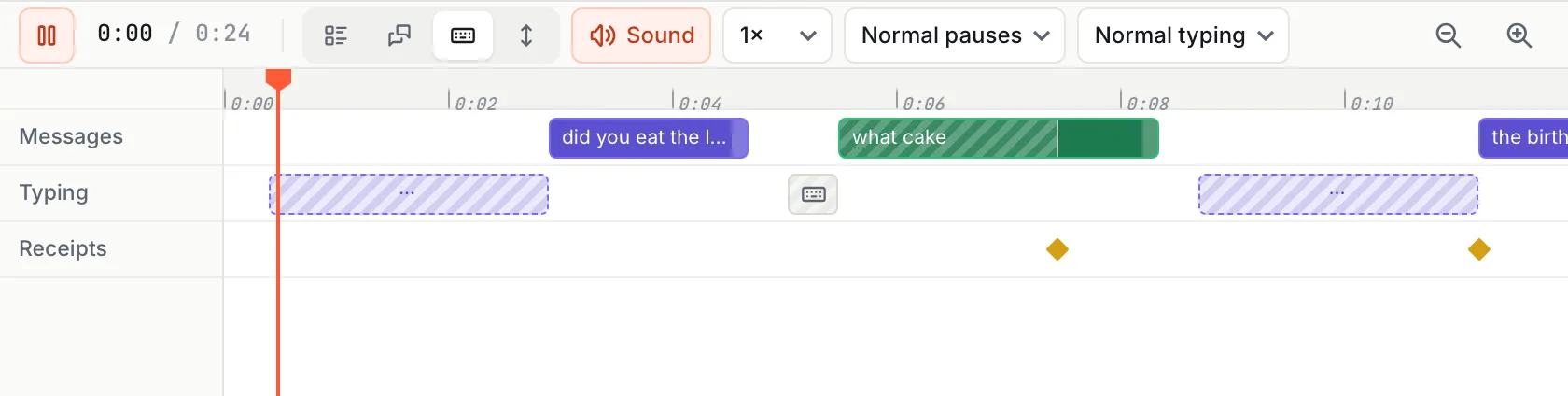
Press Video in the top bar. The phone stays in the middle and the Video bar appears under it: the style, sound, speed and pace, a play button, and a timeline with every message on it.
Pick a style
There are four. Every one plays the same chat; they differ in how it arrives.
Set the pace
- 1Speed plays the whole clip faster or slower, from 0.5× to 2×.
- 2The pauses menu (short, normal or long) sets the wait between messages; the typing menu (slow, normal or fast) sets how fast each one is typed.
- 3For one message, pick it and use Pacing on the right: a pause after it, how long it takes to type, or no typing dots at all.
- 4Sound turns the keyboard clicks and the send and receive sounds on or off.
A clip is at most 60 seconds. A longer chat plays faster to fit, and the Video bar says so; split it into two scenes to keep the pace.
Preview and export
- 1Press Preview to watch the clip from the start, full size.
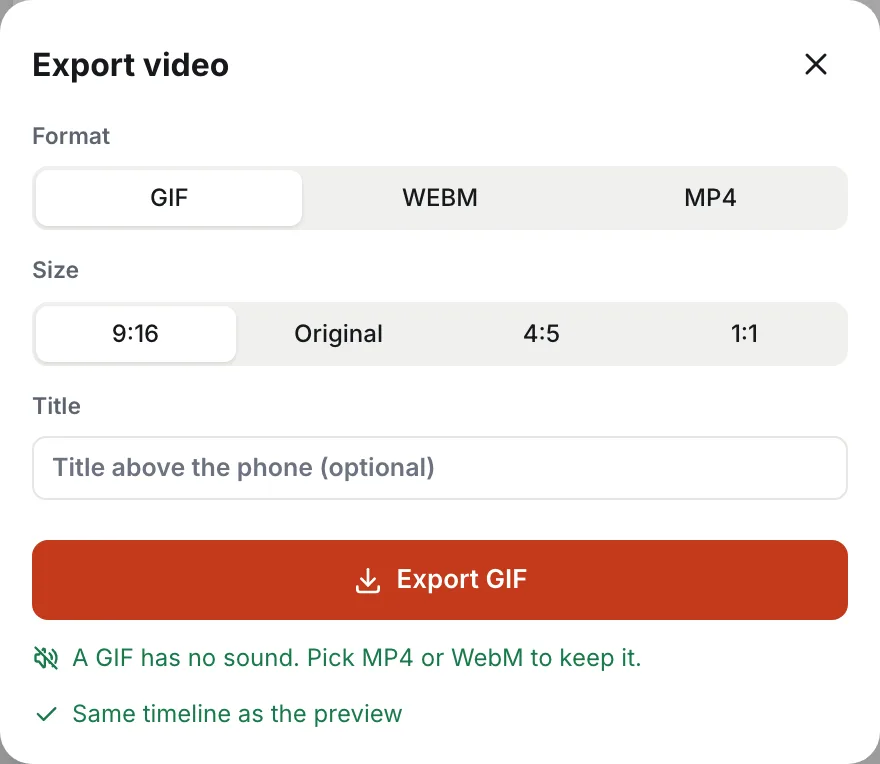
- 2Press Export and choose the Format: MP4 for TikTok, Reels and YouTube, WebM, or GIF. A GIF has no sound.
- 3Choose the Size: 9:16 for TikTok, Reels and YouTube Shorts; Original, the phone’s own taller shape; 4:5; or 1:1. Every size but Original can carry a title above the phone. For 16:9, set the scene’s Surface to Landscape in Scene settings first.
- 4Press the export button, which names the format (Export MP4). The video is made in your browser and downloads when it is ready.
Writing the chat and watching it play are free; exporting videos is part of Pro. Nothing you export carries a watermark.
Tips for a video people watch to the end
- Open on the question or the conflict — the first message decides whether anyone keeps watching.
- Put a long pause before the punchline, and give the reply that lands it no typing dots so it arrives at once.
- Two people talking past each other read better than a monologue; split long messages into several short ones.
- For a group chat seen from each member’s phone, see how to make a fake group chat on every phone.
Try it in Studio
Studio opens in your browser with a sample chat to change. No sign-up to start, and nothing you make carries a watermark.
Open StudioMore Studio guides
- Getting started with Pro Studio
Write a chat, pick the app and phone, and export your first screenshot — the whole of Studio in five minutes.
- How to make a fake group chat, on every phone
Make a group chat, then show it from each member’s phone, side by side and in sync — one video per phone.